CPTR 124 Fundamentals of Programming
In this lab you will use your Point and Line classes from a previous lab and inheritance to build a graphical application.
- Teams
You are encouraged to work with a partner for this lab. You and your partner should begin thinking about the problems and begin writing the code before lab time.
- Preparing your working folder
Make a subfolder named Lab8 within your H:\cptr124 folder. Copy your Point.java and Line.java files from a previous lab into your Lab8 folder.
- How the program behaves.
The program listens for mouse events (specifically
mouse released events). The user presses and releases the
the mouse button at four separate locations on the screen:
- The first click specifies the first point of line one. A little box appears where the user clicks the mouse.
- The second click specifies the second point of line one.
- A small box appears where the user clicks.
- After the second click, the first line should be drawn on the screen.
- The first line should be blue.
- The line's equation is displayed near the left top portion of the window in blue text.
- The third click specifies the first point of line two. (Draw the little box.)
- The fourth click specifies the second point of line two.
(Draw the little box.)
- After the fourth click, the second line should be drawn on the screen.
- The second line should be green.
- The second line's equation is displayed near the left top portion of the window (but not overlapping the first line's equation) in green text.
- After the fourth click, the point of intersection
(if any) can be drawn on the screen.
- The point of intersection (little box) should be red.
- The location of the point should be displayed as an ordered pair (x,y), in red, near the point of intersection on the screen.
- The fifth mouse click clears all the existing points and puts a new point at the position clicked. This new point represents the first point of a new line to be formed. The process described above continues until the program is terminated.
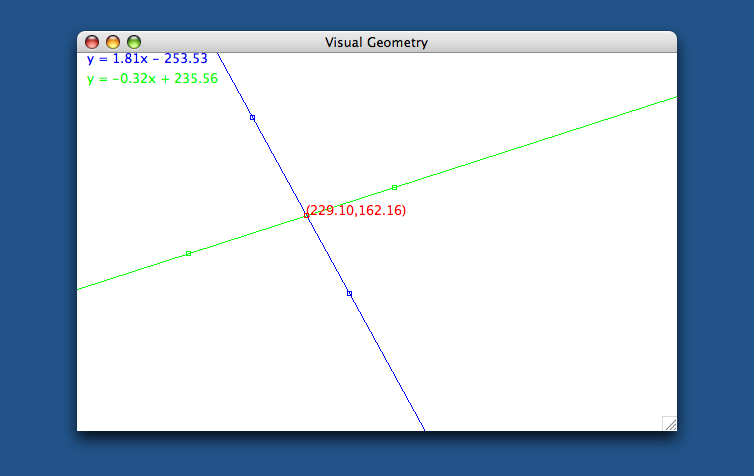
- The following figure shows how the window might look after
the user has created the lines:
- What to do.
- You should be able to use your Point and
Line classes largely as is.
Modify their toString() methods so that any
floating point values are displayed with at most two
decimal digits. You can do this with the class method
format() in the String class. For
example, if x is a double with a value of
2.2786, String.format("%.2f", x) produces the
string "2.28". This minor change will make the
output of this program much more pleasant.
Beyond this change to the toString() methods, please fix any errors in your Point and Line classes that may be revealed by the new code you write for this lab.
- Subclass the edu.southern.computing.oopj.Viewport
class (GeometryViewport is a good name for it) .
Define four instance variables of type Point
within the class:
point1, point2, point3, and
point4. These should be null initially.
Override the following methods:
- mouseReleased():
The window manager calls the mouseReleased() method
when the user
releases (after pressing) the left mouse button over
the window. The two
methods getMouseX() and getMouseY()
return the x and y coordinates of the mouse
cursor when the button was released. These two methods
are inherited from Viewport, and you can use
them as is (that is, you do not need to override these
methods).
The logic in the mouseReleased() method is as
follows.
If point1 is null, assign to it a new
point object with the mouse cursor's coordinates. If
instead point2 is null, create that new
point. If neither point1 nor point2 are
null but point3 is null,
then create point3; otherwise (all
the other points except point4
are non-null), create
point4. If none of the above apply (that is,
none of the points are currently null), then assign the
new point to point1, and set all the other
points to null. This effectively
begins a new cycle of
point creation.
The mouseReleased() method creates only Point objects; the draw() method below is responsible for creating Line objects.
Here is the pseudocode for my mouseReleased() method:
public void mouseReleased() { Create point p, the (x,y) location of the mouse cursor if (point1 is null) { Set point1 to p } else if (point2 is null) { Set point2 to p } else if (point3 is null) { Set point3 to p } else if (point4 is null) { Set point4 to p } else { Set point1 to p Set point2, point3, and point4 to null } } - draw()
The draw() method examines the instance
variables to see what must be drawn on the screen.
Any non-null points are drawn as little
squares
(4 pixels wide, centered on the point). If the first
two points (point1 and point2) are
non-null, a line passing through the two
points is drawn. Similarly, when both point3
and point4 are valid points, a line can be
drawn through those two points.
In addition to drawing a line in the window, you should create an actual Line object. Whenever a line can be drawn (because the right points are available), the line's equation can written in the window. The best way to accomplish this is to create a local Line object from the points and call its toString() method. The string returned can be passed to the drawString() method to be rendered on the screen.
When all the points are non-null, you should have two Line objects. See if the two lines intersect. If they do, draw the point of intersection (another little box), and write the point's coordinates in the window.
The draw() method will use the following methods, inherited from Viewport:
- setColor(c): sets the current painting color. Use the inherited constants BLUE, GREEN, and RED for c.
- drawRectangle(x, y, w, h) draws a rectangle with the current drawing color. The left top corner of the rectangle is at (x,y), and it is w wide and h high.
- drawLine(x1, y1, x2, y2) draws a line with the current drawing color. The line's endpoints are at (x1,y1) and (x2,y2).
- drawString(s, x, y) draws a piece of graphical text. s is the string to render, and (x,y) is location of the string's baseline.
- Here is the pseudocode for my draw()
method:
public void draw() {
    if (point1 is non-null) {
        Set the drawing color to blue
        Draw a little box centered on point1's (x,y) coordinates
        if (point2 is non-null) {
            Draw a little box centered on point2's (x,y) coordinates
            Create line1
            Draw line1
            Write line1's equation in the left top portion of the screen
            if (point3 is non-null) {
                Set the drawing color to green
                Draw a little box centered on point3's (x,y) coordinates
                if (point4 is non-null) {
                    Draw a little box centered on point4's (x,y) coordinates
                    Create line2
                    Draw line2
                    Write line2's equation in the left top portion of the screen
                    Let intersect be the point of intersection of line1 and line2
                    if (intersect is non-null) {
                        Set the drawing color to red
                        Draw a little box centered on intersect's (x,y) coordinates
                        Write intersect's coordinates near intersect
                    }
                }
            }
        }
    }
}
- mouseReleased():
The window manager calls the mouseReleased() method
when the user
releases (after pressing) the left mouse button over
the window. The two
methods getMouseX() and getMouseY()
return the x and y coordinates of the mouse
cursor when the button was released. These two methods
are inherited from Viewport, and you can use
them as is (that is, you do not need to override these
methods).
The logic in the mouseReleased() method is as
follows.
If point1 is null, assign to it a new
point object with the mouse cursor's coordinates. If
instead point2 is null, create that new
point. If neither point1 nor point2 are
null but point3 is null,
then create point3; otherwise (all
the other points except point4
are non-null), create
point4. If none of the above apply (that is,
none of the points are currently null), then assign the
new point to point1, and set all the other
points to null. This effectively
begins a new cycle of
point creation.
- You should be able to use your Point and
Line classes largely as is.
Modify their toString() methods so that any
floating point values are displayed with at most two
decimal digits. You can do this with the class method
format() in the String class. For
example, if x is a double with a value of
2.2786, String.format("%.2f", x) produces the
string "2.28". This minor change will make the
output of this program much more pleasant.
- Remarks:
- The feedback points are small (4x4 pixel) unfilled rectangles.
The rectangles are centered over the point they
represent.
- The slopes are "backwards" since the y-axis is
inverted (y = 0 at the top, y increases going
down). This is acceptable, and you do not need to
correct this behavior.
- Initially, just draw the line segment between the
endpoints entered by the user. Extend them to be true
lines (so they reach all the way to the window edges)
once you have everything else working. If you do not extend
the lines, you will be eligible for a maximum possible score
of 9 points (out of 10).
- Include a main() method in your
GeometryViewport class that simply
creates a GeometryViewport object.
This will create the window with which the user can
interact.
- The drawing primitives like drawRectangle() and
drawLine() take integers arguments, but your
point and line objects work with floating-point numbers.
This means you will need to convert to integers any
values passed to these drawing methods. Otherwise, you
should still continue to do any calculations with
floating-point numbers, not integers.
- The feedback points are small (4x4 pixel) unfilled rectangles.
The rectangles are centered over the point they
represent.
- Check out
Your finished program will be evaluated for correctness and compliance. When approved, you should submit a printout of your GeometryViewport.java file. Be sure your name and your partner(s) names are included on the printout.