CPTR 124 Fundamentals of Programming
In this lab you will reorganize your geometry functions into a separate file, add an additional function, and ensure that your code works properly within a graphical application.
- Teams
You are encouraged to work with a partner for this lab. You and your partner should begin thinking about the problems and begin writing the code before lab time.
- Ensure that you have the necessary graphics files
Windows. If you are working on a lab machine, the necessary graphics files should be present. If you are working on your own Windows computer, you need to add six files:
You can right click on the link to download the file. Once dowmloaded, copy the files to the following locations:
- glut32.dll: put this in your c:\Program Files\Microsoft Visual Studio 9.0\VC\bin\ folder. (You will need to adjust the path if you installed Visual Studio elsewhere.)
- glut32.lib: put this in your c:\Program Files\Microsoft Visual Studio 9.0\VC\lib\ folder. (Again, You will need to adjust the path if you installed Visual Studio elsewhere.)
- glut.h: create a folder named GL in your c:\Program Files\Microsoft Visual Studio 2008\VC\include\ folder. Copy glut.h into this new folder.
- sgl.dll: put this in your c:\Program Files\Microsoft Visual Studio 9.0\VC\bin\ folder.
- sgl.lib: put this in your c:\Program Files\Microsoft Visual Studio 9.0\VC\lib\ folder.
- sgl.h: Copy sgl.h into c:\Program Files\Microsoft Visual Studio 2008\VC\include\GL
Linux. If you are running Linux, inquire in lab for detailed installation instructions.
Mac OS X. If you are running OS X and have the optional XCode development tools installed (that is, you can compile and run C++ programs), install the SGL library following the instructions found here.
In the file visual_geom.cpp you must modify the preprocessor include directive
#include <GL/sgl.h>to be
#include <SGL/sgl.h>When you compile from a Terminal window, issue the command
g++ -Wall -o visgeom -framework SGL visual_geom.cpp geometry.cppThis command produces the executable named visgeom. If you prefer to use the XCode IDE, see this website for a tutorial for developing graphical applications with the XCode IDE.
- Create a new project
Create a new project named VisualGeometry. You will add three files to your project:
- geometry.cpp
In the project's Source Files folder add a C++ source file named geometry.cpp. Copy the contents of your geometry code from the previous lab into this new file. You should comment out or completely remove the main function. At the top of the file, after the other #include directives, add the line
#include "geometry.h" - geometry.h
In the project's Header Files folder add an item named geometry.h. Add the prototypes for your geometry functions in the geometry.cpp file to the geometry.h file. The easiest way to do this is to copy the text from geometry.cpp into geometry.h and then delete the bodies of the functions; for example,
     double distance(double x1, double y1, double x2, double y2)
     {
         // Your code here . . .
     }
becomes justdouble distance(double x1, double y1, double x2, double y2);Your file should contain the prototypes for the following functions:
- print_point
- distance
- slope
- intercept
- line_equation
- intersection (new function, see below)
- visual_geometry.cpp
See below for information about this file. I provide this file for you, and you should use it as is without modification.
- geometry.cpp
- Add a new function
Add a new function, intersection, that expects four double value parameters and two double reference parameters. Its prototype is
     void intersection(double m1, double b1, double m2, double b2,
                    double &x, double &y);
The function assigns to x and y the coordinates of the point of intersection of line #1 (slope = m1, intercept = b1) and line #2 (slope = m2, intercept = b2).
If the lines do not have a single point of intersection, HUGE_VAL (declared in <cmath>) should be assigned to both x and y. The client code can then check for a valid intersection point.
How do you compute the point of intersection of two lines?
- If the two lines have the same slope, there is no single point of intersection. The bogus point (HUGE_VAL, HUGE_VAL) is assigned in that case.
- If neither line is horizontal or vertical,
we have a pair of equations that look like
y = m1x + b1 since both righthand expressions equal y, set them equal to each other:
y = m2x + b2m1x + b1 = m2x + b2 and solve for x:m1x - m2x + b1
=
m2x - m2x + b2
m1x - m2x + b1
=
b2
m1x - m2x + b1 - b1
=
b2 - b1
m1x - m2x
=
b2 - b1
(m1 - m2)x
=
b2 - b1
x
=
(b2 - b1)/ (m1 - m2)
This final equation
x = (b2 - b1)/ (m1 - m2) serves as a formula to compute x. Once you have x you can plug it into either of the original equations to compute y. The x and y values are then used to create the required point.
- If one of the lines is horizontal or vertical, you know immediately one of the coordinates (x for vertical lines and y for horizontal lines). Plug the known value into the equation for the other line to compute the other coordinate.
- If one of the lines is horizontal and the other is vertical, you know immediately both of the coordinates (the x coordinate comes from the vertical line and the y coordinate comes from the horizontal line).
You will need to add intersection's prototype to geometry.h and its definition (implementation) to geometry.cpp.
You may have to fix errors in your existing functions if the new graphical client code reveals logic errors that were not uncovered by earlier tests.
The most common problem is an incorrect and/or incomplete intersection function. The code within visual_geom.cpp depends on a correctly written intersection function to draw a line from one side of the window to the other. Since it is easy to experiment with all kinds of lines visually, your testing may reveal errors in your existing code. If you do not see any lines or lines are missing in certain situations, focus on correcting your intersection function. Pay particular attention to how you handle vertical lines.
- Add the graphical client code
Add the file visual_geom.cpp to your project. If you have correctly implemented the interface specified by the geometry.h file (and if necessary you have added the six files to the proper folders), you should be able to interact visually with your functions as demonstated in class.
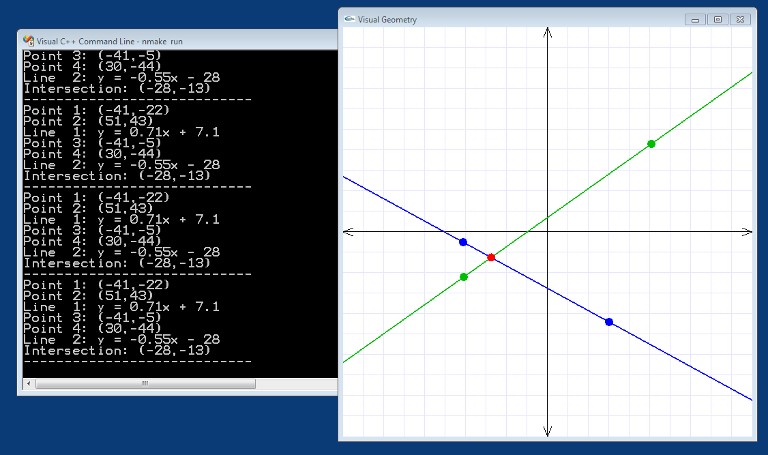
The graphical application allows the user to interactively supply points for lines that potentially intersect. The axes range from -100 to +100, so each square on the graph paper is 10 units wide by 10 units high. The location of the points, the equations of the lines, and the intersection point are printed in the console window. You do not need to program this functionality; it is built into visual_geom.cpp. You may not change the contents of visual_geom.cpp.
- Showing it off
If you wish to run your program on a Windows XP/7 computer that does not have Visual Studio and the special graphical library files installed (that would be 99+% of all XP/Windows 7 computers), make a new folder and copy the following files into it:
- The executable file you built with Visual C++ (the .exe file the compiler and linker created)
- glut32.dll
- sgl.dll
- Microsoft.VC90.CRT.manifest
- msvcm90.dll
- msvcp90.dll
- msvcr90.dll
     <file name="glut32.dll"></file>
     <file name="sgl.dll"></file>
before the end where it has </assembly>. With these files in place, the user can run your program by opening the folder you created and double clicking on your visual geometry executable file.
Mac users need the SGL framework for the program to run.
- Check out
Your finished program will be evaluated for correctness and compliance. When approved, you should submit your C++ source file to eclass. Be sure your name and your partner's name are included in comments at the top of each source file.